
New to planning?
Start here.
Plan Right with GanttRight.
You know your trade. Nobody ever taught you scheduling, because almost nobody is taught scheduling — it gets handed to whoever is holding the job. This page walks you through building one plan from nothing, in the order the software actually wants you to do it.
30 days free from the Microsoft Store. No card, nothing to cancel.
A Plan Is a Picture, Not a Spreadsheet
Most project management software assumes you already think in start dates, durations, and dependency types, and makes you type all three before it shows you anything. If you do not already think that way, you are filling in a form for a picture you have not seen yet — which is a miserable way to learn.
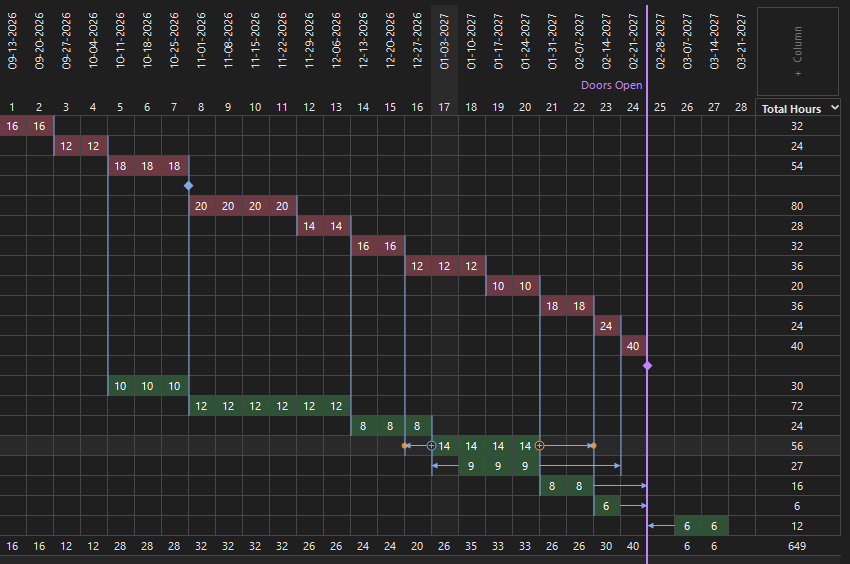
GanttRight goes the other way. You draw the plan and the picture teaches you the ideas. Once you have watched one bar shove six others down the calendar, you understand the critical path better than any definition was ever going to manage.
- Critical — the longest path to project completion
- Floating — has room to move
- Milestone — a moment to hit
That is the entire legend. There is no more notation to learn.
Build Your First Plan from Scratch
Start a Plan First project and you get an empty board and nothing else — no calendar, no dates, no settings to work through. That is deliberate. The three views come in a particular order for a beginner. This is that order.
First
Task Flow
Write down the work and put it in order. No dates yet.
Second
Gantt Chart
Turn that order into real dates and see what drives the finish.
Third
Task Inspector
Fill in who, how much, and what could go wrong.
Part one — Task Flow: get the shape right
This is the sticky-notes-on-a-wall stage. You are not scheduling anything yet; you are working out what the job is actually made of.
Start a Plan First project
Project → New, then take Plan First — it is already selected. You land on an empty Task Flow board. There is nothing to configure and no date to commit to. That is exactly what you want before you know the shape.
Add a card for every job
Add Task, name it, repeat. Do not worry about order or timing. Do not stop to think about dates. Just get the work out of your head and onto the board while you can still remember all of it.
Draw the arrows that say what waits on what
Drag from one card to the next. This is the only genuinely important question in planning: what cannot start until something else has finished. If a link is impossible — a loop back on itself, two starts tied together — it turns red and names the reason before you let go.
Put a rough duration on each card
How long the work takes, not when it happens. A guess is fine; you will improve it. Leaving one at zero means “not estimated yet” rather than “takes no time”, so nothing quietly sneaks through as free.
Add the milestones somebody else decided
The handover date, the inspection, the day the doors open. Milestones have no duration — they are moments and they usually belong to someone other than you.
When the board reads correctly — when you could walk someone through it and they would nod — the hard part is done. Everything after this is arithmetic.
Part two — Gantt Chart: turn the shape into dates
Now the software does the bit that is genuinely hard to do in your head.
Run Build Schedule
It reads your order and your estimates and proposes real dates for everything at once. You get a preview first — nothing is committed until you choose Apply. Cancelling leaves the plan exactly as it was.
Look at what turned pink
That chain is your critical path: the longest route through the plan and the one that decides your finish date. A day lost there is a day lost off the end of the project. Everything else turns green, with arrows showing the room it has.
Drag a green bar and then a pink one
Do this. It is the moment the whole idea lands. A green task slides inside its own slack and nothing else moves. A pink one shoves its entire chain down the calendar and the finish date moves with it.
Adjust hours and watch the totals
Type hours into the cells and the lead totals and costs update as you go, not after a recalculation you had to ask for. If a week looks impossible, it probably is.
Part three — Task Inspector: add the details
A bar on a chart is not yet something a person can act on. The Inspector is where it becomes one.
Select a task and open the Inspector
One task, in full: its lead, its schedule, its hours and cost. Set who owns it. A plan where every bar has a name against it is a different document from one where nobody is responsible for anything.
Write the notes while you still remember
Why this task exists, what it assumes, what you agreed with somebody. Six weeks from now this is the difference between a plan you trust and a plan you are re-deriving from memory.
Record the risks and mark what is blocked
A risk you wrote down is one you can manage. Marking a task blocked, with a reason, is how the plan tells the truth about why it is not moving.
Finish with Resource Load
Turn it on and check nobody is quietly doing three jobs in the same week. This is the single most common way a plan that looks fine on paper falls apart in practice.
That is a complete plan, built from nothing. Print the Project Brief and you have something to hand to a client, a crew or a boss — in plain language, without them needing the software.
Now That You Know How GanttRight Works, Stop Starting from Scratch
It was worth building one yourself, because now you know what the parts are and why they are in that order. You will almost never do it that way again — and neither does anybody experienced.
124 sample plans across 45 industries are a free download, from retail fit-out and refinery turnaround to wedding planning and clinical trials. Each one is there to reference: a worked-through sequence, the gates it hangs on, and a note on every task explaining the ordering.
Copying a good plan is the apprenticeship
Nobody learns sequencing from first principles. They learn it by seeing a worked example, then doing it themselves with the shape in their head. A sample plan is that, compressed — the ordering laid out where you can read it and reason about it.
Keep the order, change everything else
Open the one closest to your job. Rename the tasks to your work, put your own durations in, and delete what does not apply. The sequence is the valuable part and it is already right. The numbers are a starting shape and were always going to be yours.
The notes tell you why
Before you change anything, click through a few tasks in the Inspector and read the notes. They explain why a gate is where it is. Half of learning to plan an unfamiliar job is finding out which waits are real and which are habit.
Holidays you would have forgotten
Working calendars for 15 countries come with it. Nothing schedules through a shutdown you did not know about — a plant closed for Lunar New Year is the oldest trap in planning and you only fall into it once.
See what ships for construction, marketing, software, and the trades, or browse the bonus plans.
What Else Makes Planning Easier When You Are New
GanttRight tells you why, while you are still dragging
Link two starts together, or loop a chain back on itself, and the target hatches red and names the reason before you let go. You are not punished with an error box after the fact — you learn the rules by bumping into them. That is the only way anybody learns them.
What you see, you can grab
The bar is the duration. The arrow is the dependency. The slack is a track with two ends you can push. You are never editing a number that stands in for the task — which means you can always undo a mistake by simply moving it back.
A great start for new planners
How To Build A Plan That Holds is part of that download: about twenty minutes on what the critical path actually means, why float is a budget you can spend twice by accident, and what to do on the day something slips. A review checklist and an estimating guide come with it.
One file, on your own computer
Your plan is a single .gtrt file on your disk. There is no
account, no workspace and nothing in the cloud to lose access to. You cannot break anything that is not recoverable. That matters more than it sounds when you are learning.
Approachable, but Not a Toy
Underneath the drawing, GanttRight is running proper critical path scheduling, float, baselines, resource load checks and cost roll-ups — the things an experienced planner expects to find. You can start on day one without knowing any of that and still be using it properly in a year. That is the part most “easy” software gets wrong.
It is also built for the solo project planner who owns a plan — one person, one file, no workspace to administer. Several people editing one chart at once is a different job. We would rather say so here than let you find out later.
Install from the Microsoft Store to begin the 30-day free trial — no card, nothing to cancel, and every feature and template included.